Shade styles
Shade styles are used to change the drawing behaviour of the Drawer
affecting the appearance of all drawing primitives.
Shade styles are composed of two types of transforms: vertex transforms and fragment transforms. The two transforms are applied in separate stages of the rendering process. In the vertex transform it is possible to change the geometry of what is drawn, and in the fragment transform it is possible to change the appearance of that geometry. A shade style can affect vertices, fragments or both.
A selection of preset ready-to-use shade styles is provided by
orx-shade-styles
For those interested in authoring shade styles it is helpful to have some basic understanding of shaders and GLSL.
Basic usage
In essence shade styles are fragments of GLSL code that are inserted into OPENRNDRs templated shaders.
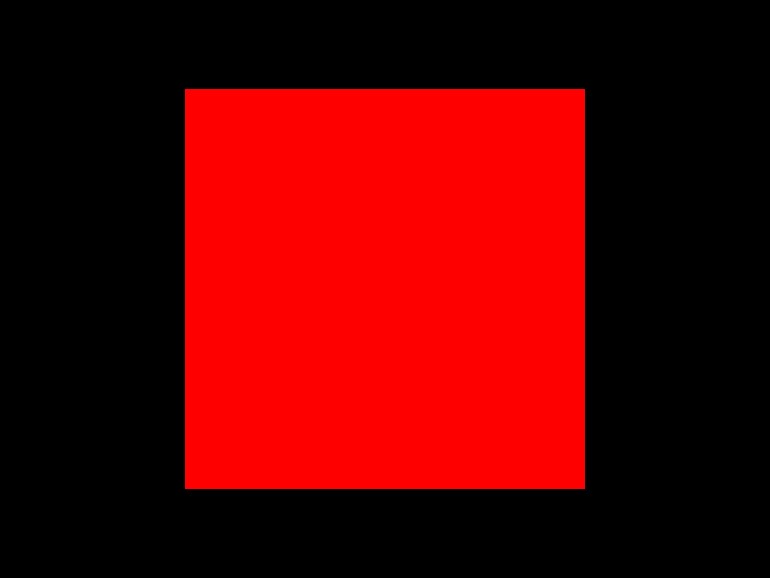
As a quick first step we override the output to red in the following snippet
import org.openrndr.application
import org.openrndr.color.ColorRGBa
import org.openrndr.draw.*
import org.openrndr.extra.camera.OrbitalCamera
import org.openrndr.extra.meshgenerators.sphereMesh
import org.openrndr.extra.shapes.hobbycurve.hobbyCurve
import org.openrndr.math.Vector2
import org.openrndr.math.Vector3
import org.openrndr.shape.Circle
import kotlin.math.cos
import kotlin.math.sin

fun main() = application {
    program {
        extend {
            drawer.shadeStyle = shadeStyle {
                fragmentTransform = "x_fill.rgb = vec3(1.0, 0.0, 0.0);"
            }
            drawer.fill = ColorRGBa.PINK
            drawer.stroke = null
            drawer.rectangle(width / 2.0 - 200.0, height / 2.0 - 200.0, 400.0, 400.00)
        }
    }
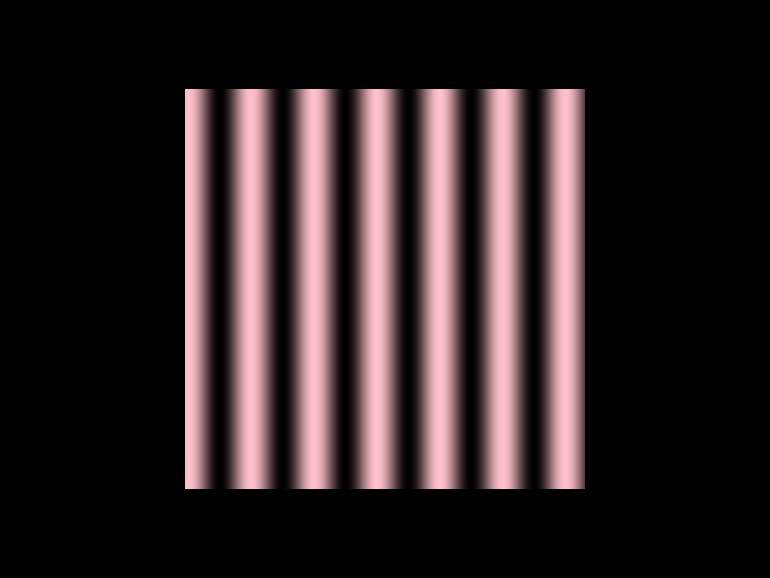
}The idea of shade styles is to allow more complex changes in the appearance. In the next snippet we create a wavy pattern by using cosines and the screen position.
import org.openrndr.application
import org.openrndr.color.ColorRGBa
import org.openrndr.draw.*
import org.openrndr.extra.camera.OrbitalCamera
import org.openrndr.extra.meshgenerators.sphereMesh
import org.openrndr.extra.shapes.hobbycurve.hobbyCurve
import org.openrndr.math.Vector2
import org.openrndr.math.Vector3
import org.openrndr.shape.Circle
import kotlin.math.cos
import kotlin.math.sin

fun main() = application {
    program {
        extend {
            drawer.shadeStyle = shadeStyle {
                fragmentTransform = """
 float c = cos(c_screenPosition.x * 0.1) * 0.5 + 0.5;
 x_fill.rgb *= vec3(c, c, c);
                """.trimMargin()
            }
            drawer.fill = ColorRGBa.PINK
            drawer.stroke = null
            drawer.rectangle(width / 2.0 - 200.0, height / 2.0 - 200.0, 400.0, 400.00)
        }
    }
}In the next step we introduce animation by adding an external clock signal to the shade style. Shade styles have parameters that can be used for this.
Notice how parameters like time receive a p_ prefix in the GLSL world.
This makes it easy to distinguish the uniforms we send into shaders from other
variables declared by the framework.
import org.openrndr.application
import org.openrndr.color.ColorRGBa
import org.openrndr.draw.*
import org.openrndr.extra.camera.OrbitalCamera
import org.openrndr.extra.meshgenerators.sphereMesh
import org.openrndr.extra.shapes.hobbycurve.hobbyCurve
import org.openrndr.math.Vector2
import org.openrndr.math.Vector3
import org.openrndr.shape.Circle
import kotlin.math.cos
import kotlin.math.sin

fun main() = application {
    program {
        extend {
            drawer.shadeStyle = shadeStyle {
                fragmentTransform = """
 float c = cos(c_screenPosition.x * 0.1 + p_time) * 0.5 + 0.5;
 x_fill.rgb *= vec3(c, c, c);
                """.trimMargin()
                parameter("time", seconds)
            }
            drawer.fill = ColorRGBa.PINK
            drawer.stroke = null
            drawer.rectangle(width / 2.0 - 200.0, height / 2.0 - 200.0, 400.0, 400.0)
        }
    }
}Usage examples
Here follow some examples of common problems that are solved using shade styles.
Mapping images on shapes
import org.openrndr.application
import org.openrndr.color.ColorRGBa
import org.openrndr.draw.*
import org.openrndr.extra.camera.OrbitalCamera
import org.openrndr.extra.meshgenerators.sphereMesh
import org.openrndr.extra.shapes.hobbycurve.hobbyCurve
import org.openrndr.math.Vector2
import org.openrndr.math.Vector3
import org.openrndr.shape.Circle
import kotlin.math.cos
import kotlin.math.sin

fun main() = application {
    program {
        val image = loadImage("data/images/cheeta.jpg")
        image.filter(MinifyingFilter.LINEAR_MIPMAP_NEAREST, MagnifyingFilter.LINEAR)
        extend {
            drawer.shadeStyle = shadeStyle {
                fragmentTransform = """
                    vec2 texCoord = c_boundsPosition.xy;
                    texCoord.y = 1.0 - texCoord.y;
                    vec2 size = textureSize(p_image, 0);
                    texCoord.x /= size.x/size.y;
                    x_fill = texture(p_image, texCoord);
                """
                parameter("image", image)
            }

            val shape = Circle(width / 2.0, height / 2.0, 110.0).shape
            drawer.translate(cos(seconds) * 100.0, sin(seconds) * 100.0)
            drawer.shape(shape)
        }
    }
}Mapping images on contours
import org.openrndr.application
import org.openrndr.color.ColorRGBa
import org.openrndr.draw.*
import org.openrndr.extra.camera.OrbitalCamera
import org.openrndr.extra.meshgenerators.sphereMesh
import org.openrndr.extra.shapes.hobbycurve.hobbyCurve
import org.openrndr.math.Vector2
import org.openrndr.math.Vector3
import org.openrndr.shape.Circle
import kotlin.math.cos
import kotlin.math.sin

fun main() = application {
    program {
        val image = loadImage("data/images/cheeta.jpg")
        backgroundColor = ColorRGBa.WHITE
        extend {
            val c = hobbyCurve(List(10) {
                Vector2(it * width / 9.0, height * 0.5 + sin(seconds + it) * 100.0)
            }, false)
            drawer.shadeStyle = shadeStyle {
                fragmentTransform = """
                x_stroke = texture(
                    p_image, vec2(c_contourPosition / p_len, 1.0 - va_texCoord0.x)
                );
            """.trimIndent()
                parameter("image", image)
                parameter("len", c.length)
            }
            drawer.strokeWeight = 80.0
            drawer.contour(c)
        }
    }
}3D mesh distortion
This example shows that one can also modify the vertex shader, in this case to displace vertices using sine functions. The current time in seconds is passed into the shader to produce a wavy effect. The fragment shader uses sine functions to specify colors depending on the world position of each vertex.
import org.openrndr.application
import org.openrndr.color.ColorRGBa
import org.openrndr.draw.*
import org.openrndr.extra.camera.OrbitalCamera
import org.openrndr.extra.meshgenerators.sphereMesh
import org.openrndr.extra.shapes.hobbycurve.hobbyCurve
import org.openrndr.math.Vector2
import org.openrndr.math.Vector3
import org.openrndr.shape.Circle
import kotlin.math.cos
import kotlin.math.sin

fun main() = application {
    program {
        val sphere = sphereMesh(32, 32, 0.6)
        val style = shadeStyle {
            vertexTransform = """
                vec3 p = x_position * 8.0 + p_seconds;
                // displace the vertices
                x_position.x += sin(p.y) * 0.1;
                x_position.y += sin(p.z) * 0.1;
                x_position.z += sin(p.x) * 0.1;
            """.trimIndent()

            fragmentTransform = """
                vec3 c = sin(v_worldPosition) * 0.5 + 0.5;
                x_fill = vec4(c, 1.0);
            """.trimIndent()
        }

        val camera = OrbitalCamera(Vector3.UNIT_Z, Vector3.ZERO)

        extend(camera)
        extend {
            camera.rotate(0.2, 0.0)
            style.parameter("seconds", seconds)
            drawer.shadeStyle = style
            drawer.vertexBuffer(sphere, DrawPrimitive.LINES)
        }
    }
}The shade style language
Prefix overview
Listed below is an overview of all the prefixes used in the shade style language.
| prefix | Scope | Description |
|---|---|---|
u_ | all | system uniforms passed in from Drawer |
a_ | vertex transform | vertex attribute |
va_ | fragment transform | varying attribute, interpolation passed from vertex to fragment shader |
v_ | fragment transform | varying values, interpolation passed from vertex to fragment shader |
i_ | vertex transform | instance attribute |
vi_ | fragment transform | varying instance attribute |
x_ | all | transformable value |
p_ | all | user provided value |
o_ | fragment transform | output value (always vec4) |
d_ | all | shader definitions |
Standard uniforms
Listed below is an overview of all the prefixes used in the shade style language.
| Uniform name | GLSL type | Description |
|---|---|---|
u_modelNormalMatrix | mat4 | matrix used to transform vertex normals from object to world space |
u_modelMatrix | mat4 | matrix used to transform vertices from object to world space |
u_viewNormalMatrix | mat4 | matrix used to transform vertex normals from world space to view space |
u_viewMatrix | mat4 | matrix used to transform vertices from world space to view space |
u_projectionMatrix | mat4 | matrix used to transform vertices from view space to clip space |
u_contentScale | float | the active content scale |
u_viewDimensions | vec2 | the dimensions of the target viewport |
u_fill | vec4 | the Drawer fill color |
u_stroke | vec4 | the Drawer stroke color |
u_strokeWeight | float | the Drawer strokeWeight |
u_colorMatrix | float[25] | the Drawer color matrix |
Standard Attributes
Attributes are only directly accessible in the vertex transform. However interpolated forms of the the attributes are passed to the fragment transform.
| Attribute name | GLSL type | Description |
|---|---|---|
a_position | vec3 | the position |
a_normal | vec3 | the normal |
a_color | vec3 | the color |
The interpolated versions that are only accessible in the fragment transform.
| Attribute name | GLSL type | Description |
|---|---|---|
va_position | vec3 | the interpolated position |
va_normal | vec3 | the interpolated normal |
va_color | vec3 | the interpolated color |
va_texCoord0 | vec2 | the uv coordinate of the first texture |
For contours va_texCoord0.x contains a normalized value that increases from
0.0 to 1.0 across its width.
Other interpolated values
These values are calculated in the vertex shader and only accessible in the fragment transform.
| Value name | GLSL type | Description |
|---|---|---|
v_worldNormal | vec3 | interpolated normal in world coordinates |
v_viewNormal | vec3 | interpolated normal in view coordinates |
v_worldPosition | vec3 | interpolated position in world coordinates |
v_viewPosition | vec3 | interpolated position in view coordinates |
v_clipPosition | vec4 | interpolated position in clip coordinates |
v_modelNormalMatrix | mat4 | non-interpolated (flat) model normal matrix |
Transformable values
These are values that can be transformed using shade styles.
Vertex transform
| Variable name | GLSL type | Description |
|---|---|---|
x_position | vec3 | vertex position, initialized with value a_position |
x_normal | vec3 | vertex normal, initialized with value a_normal |
x_viewMatrix | mat4 | view matrix |
x_normalMatrix | mat4 | normal matrix, initialized with normalMatrix |
x_projectionMatrix | mat4 | projection matrix, initialized with projectionMatrix |
x_modelMatrix | mat4 | model matrix, initialized with modelMatrix |
x_modelNormalMatrix | mat4 | model normal matrix, initialized with modelNormalMatrix |
x_viewNormalMatrix | mat4 | view normal matrix, initialized with viewNormalMatrix |
Fragment transform
| Variable name | GLSL type | Description |
|---|---|---|
x_fill | vec4 | The fill color written to the fragment |
x_stroke | vec4 | The stroke color written to the fragment |
Constants
| Constant name | Scope | GLSL type | Description |
|---|---|---|---|
c_element | all | int | the element index in batched rendering |
c_instance | all | int | the instance index in instanced rendering |
c_screenPosition | fragment transform | vec2 | the position on screen in device coordinates |
c_contourPosition | fragment transform | float | the position on the contour, between 0.0 and contour.length. Only non-zero when drawing line segments and contours |
c_boundsPosition | fragment transform | vec3 | the bounding box position of the current shape or contour stored in .xy |
c_boundsSize | fragment transform | vec3 | the bounding box size of the current shape or contour stored in .xy |
Parameters
Parameters can be used to supply external data to transforms. Parameters are translated to shader uniforms and are exposed
by uniforms with the p_ prefix.
ColorBuffer parameters
Can be used to map images.
BufferTexture parameters
Can be used to map custom values.
Supported parameter types:
| JVM type | GLSL type |
|---|---|
float | float |
Vector2 | vec2 |
Vector3 | vec3 |
Vector4 | vec4 |
ColorRGBa | vec4 |
Matrix44 | mat4 |
DepthBuffer | sampler2D |
ColorBuffer | sampler2D |
BufferTexture | samplerBuffer |
Source code
One can explore the source code to find out how attributes and uniforms are used:
- ShadeStyleGLSL.kt (JVM)
- ShadeStyleGLSL.kt (WEBGL)
- ShaderGeneratorsGLCommon.kt
Vertex and fragment preambles
Since the code declared in vertexTransform and fragmentTransform end up inside the main() function of shader
programs, you may be wondering how you could declare custom functions, for example, to calculate a noise value,
a random value or to do matrix rotations (common functions used in shader programs).
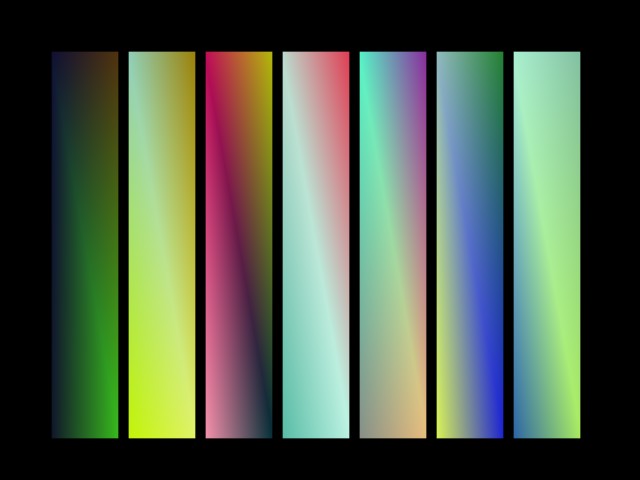
To achieve this, we use two keywords: vertexPreamble and fragmentPreamble.
The code found in these strings gets inserted into the shader programs before the main() function, allowing us
to declare custom functions or even varyings (to pass values from the vertex shader into the fragment shader).
import org.openrndr.application
import org.openrndr.color.ColorRGBa
import org.openrndr.draw.*
import org.openrndr.extra.camera.OrbitalCamera
import org.openrndr.extra.meshgenerators.sphereMesh
import org.openrndr.extra.shapes.hobbycurve.hobbyCurve
import org.openrndr.math.Vector2
import org.openrndr.math.Vector3
import org.openrndr.shape.Circle
import kotlin.math.cos
import kotlin.math.sin

fun main() = application {
    program {
        val style = shadeStyle {
            // Define the `random` function and declare a `c`
            // variable to pass to the fragment shader.
            vertexPreamble = """
                float random(vec2 st) {
                    return fract(sin(dot(st.xy,
                        vec2(12.9898, 78.233))) * 43758.5453123);
                }
                out vec3 c;
            """.trimIndent()

            // Calculate the value of `c` per vertex.
            // It will get interpolated by the GPU.
            vertexTransform = """
                c.r = random(x_position.xy);
                c.g = random(x_position.yx);
                c.b = random(x_position.xy + 1.0);
            """.trimIndent()

            // Declare a `c` variable to receive from the vertex shader.
            fragmentPreamble = "in vec3 c;"
            // Use the value of `c` to set the color of a pixel.
            fragmentTransform = "x_fill.rgb = c;"
        }
        extend {
            drawer.shadeStyle = style
            repeat(7) {
                // Notice how we do not set `drawer.fill`.
                drawer.rectangle(
                    50.0 + it * 77, 50.0, 70.0, 390.0
                )
            }
        }
    }
}Debugging tip
If you want to study the vertex or the fragment shader in their final form, a simple
technique is to provoke an error. Throw in some incorrect syntax: for example,
add an x character at the beginning of the vertex or the fragment shader.
When you try to run the program, it will fail, and a file called ShaderError.glsl
will be written into the project’s root. Study that file to understand what
attributes and uniforms are available and to figure out why your program fails
in case the syntax error was not intentional.